A hundred customers. Twelve languages. One of you.
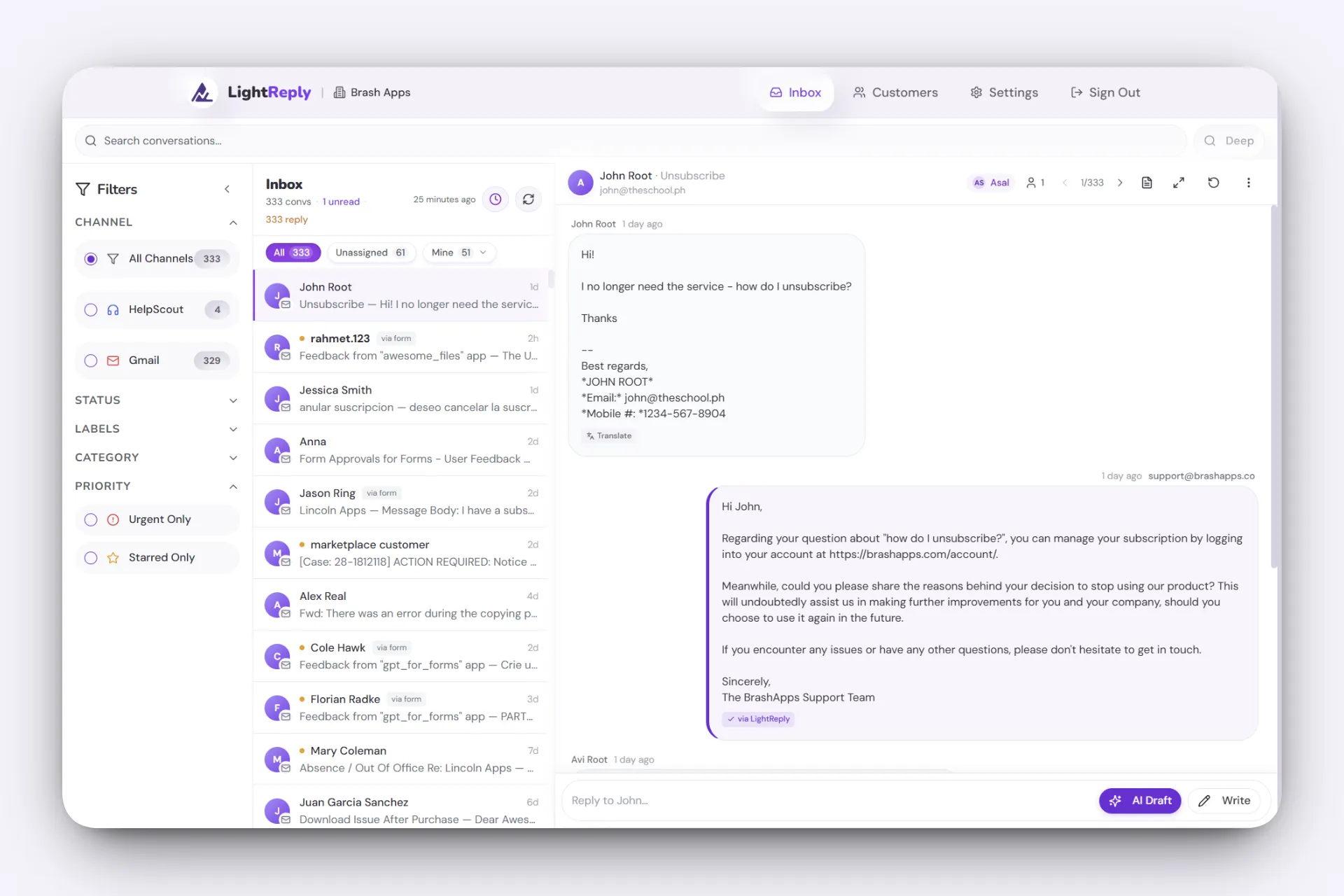
LightReply drafts every reply from your product docs, your past answers, and that customer's full history — so a one-person support team reads like a real one.
Built for support queues, not single emails — your docs, your past replies, and that customer's history behind every draft.
Support is eating your week
You sit down to build, and three hours later you're still answering tickets.
Half your replies are the same question, reworded — typed out from scratch again.
The longer someone waits, the more likely they quietly leave for something else.
From inbox to sent in three steps
Connect your inbox
Link Gmail or Microsoft 365 (Outlook) in about 60 seconds. No migration, no new inbox to learn.
We learn your voice
LightReply studies your sent replies and knowledge base to sound exactly like you.
Review and send
Every ticket arrives with a ready draft. Skim it, tweak if needed, hit send.
Everything you need to reply faster
Drafts in your voice
Not a chatbot tone — replies that sound like you wrote them.
KB learning
Pulls from your knowledge base and past answers automatically.
Gmail and Microsoft 365
Works with the inbox you already use: Google Workspace, Gmail, Microsoft 365 and Outlook.com.
Multilingual
Auto-translates so you can reply in any customer's language.
Multi-product context
Knows which product a ticket is about and answers accordingly.
Team attribution
Tracks who handled what across your support team.
What LightReply can do in your mailbox
To draft a reply, LightReply has to read the conversation. Here is exactly what it asks for when you connect your inbox, and what it can't do.
Gmail
Google Workspace and personal @gmail.com
- Read your messages to show conversations and draft replies
- Send a reply from your address when you click Send
- See your email address to label the connected inbox
- Cannot delete, archive, label or change your emails.
Microsoft 365
Work accounts and personal Outlook.com, Hotmail, Live
- Read your messages to show conversations and draft replies
- Create the reply in your mailbox and send it when you click Send
- Stay connected so new emails keep arriving without signing in again
- Never deletes or moves your emails. It only writes the reply you send.
Our promises
- A person clicks Send on every reply. LightReply never sends on its own.
- Your emails are not used to train AI models.
- No ads, no selling or sharing your data.
- Disconnect anytime, in LightReply or in your Google or Microsoft account.
- Each workspace is isolated. Mailbox access keys are readable only by our servers.
Drafts we actually send
We built LightReply for our own inbox first. Most tickets now start from a draft that's ready to send — so the human stays in the loop and the customer gets a real answer.
“We use LightReply every day to handle customer requests at Brash Apps. Our reviews on the Google Workspace Marketplace have climbed noticeably since — faster, more human replies make all the difference.”
Why not Zendesk or Salesforce?
Those enterprise behemoths are built for call centers, not founders. LightReply is fast and human — just like you. See how we compare.
Simple, fair pricing
Plans from $29/mo for founders and small teams. Pay for the value you get — and apply a promo code at checkout for a discount.
Questions
Which email providers does LightReply work with?
Gmail (Google Workspace and personal @gmail.com) and Microsoft 365, including personal Outlook.com and Hotmail accounts. Using something else? Write to us and tell us which one.
Does LightReply send emails on its own?
No. LightReply writes a draft for every incoming email. A person reads it, edits it if needed and clicks Send. Nothing leaves your mailbox without that click.
Why does Google show a warning when I connect Gmail?
Google is still reviewing LightReply's access to Gmail. Until the review is done, Google shows an "unverified app" screen once: choose Advanced, then continue to LightReply. On a company Google Workspace or Microsoft 365 account, your admin may need to allow LightReply first.
Is my email used to train AI?
No. Drafts are generated by AI providers that contractually commit not to train on data sent through their APIs, and we don't train models on your conversations.
Can my team share one support inbox?
Yes. Invite teammates to your workspace. Everyone works the same inbox, and LightReply shows who handled each conversation.
How do I disconnect my inbox?
In LightReply, open Settings and disconnect the mailbox: syncing stops right away. You can also remove LightReply from your Google account permissions or your Microsoft account's app list.
Your inbox, handled by tonight.
Connect Gmail or Microsoft 365 in 60 seconds. Start sending AI drafts in your voice today.